Registration/bwForCluster/Helix: Difference between revisions
< Registration | bwForCluster
Jump to navigation
Jump to search
H Schumacher (talk | contribs) m (New formatting) |
H Schumacher (talk | contribs) m (bwServices functionality: added ssh key and token) |
||
| (2 intermediate revisions by the same user not shown) | |||
| Line 33: | Line 33: | ||
== Registration Website bwServices == |
== Registration Website bwServices == |
||
The registration website '''[https://bwservices.uni-heidelberg.de bwServices]''' offers the following functionality: |
The registration website '''[https://bwservices.uni-heidelberg.de bwServices]''' offers the following functionality: |
||
* Register for the service |
* Register for the service. |
||
* Set or change your service password |
* Set or change your service password. |
||
* Review your registration details |
* Review your registration details under "Registry Info". This includes your account status (active/lost_access). |
||
* bwServices triggers an update of your user information upon login. |
|||
** In the case of access problems, you can find an error message here. It informs you about the solution. If this doesn't solve your problem, you can contact the service desk of your home organisation. |
|||
* Registering an [[Registration/SSH | SSH key]]. It can be used for login to ''bwForCluster Helix''. |
|||
| ⚫ | |||
* Creating tokens for logins that need 2-factor authentication ([[Registration/2FA |2FA]]) like ''bwForCluster Helix'' and ''bwVisu''. |
|||
| ⚫ | |||
=== Troubleshooting with the Help of bwServices === |
|||
When encountering connection issues with a service, the bwServices website is a good starting point for troubleshooting: |
|||
* <ins>'''Issue:</ins> Expired contract''' or inactive student id: |
|||
** No access to state services like the bwHPC clusters or SDS@hd is possible. |
|||
** You can see that this is the issue when the login to bwServices via your identity provider is not possible. |
|||
* <ins>'''Issue:</ins> Recently (re)activated uni-id:''' Your id at your home organization was (re)activated a short time ago but this change didn't get through to the bwHPC cluster or SDS@hd service. |
|||
** Login to bwServices. This triggers an update of your user information. Some minutes later, the connection to the service should work. |
|||
* <ins>'''Issue:</ins> Entitlement / RV missing:''' Prerequisites like entitlement ownership or RV membership aren't met (anymore). |
|||
** You can see the concrete issue and advice on how to move forward when looking at the registry info of the service on the bwServices website. |
|||
** When the issue is solved, the account status changes from LOST_ACCESS to ACTIVE. |
|||
* <ins>'''Issue:</ins> Service Password:''' When trying to connect to the service, the service password is not accepted. |
|||
** At bwServices a [[#Setting_a_New_Service_Password | new password]] can be set for the service. |
|||
* <ins>'''Issue:</ins> OTP:''' In the case of login issues with a service that uses 2FA, you can check if you're OTP is working by going in the menu to ''Index'' -> ''My Tokens''. |
|||
** If you're token is not working, please follow the instructions for a [[Helix/Login#Troubleshooting | Lost Token]]. |
|||
=== Setting a New Service Password === |
|||
At any time, you can set a new service password via [https://bwservices.uni-heidelberg.de/ bwServices] by carrying out the following steps: |
|||
# Visit [https://bwservices.uni-heidelberg.de/ bwServices] and select your home organization. |
|||
# Authenticate yourself via your home-organizational user id / username and your home-organizational password. |
|||
# Find your service and select '''Set Service Password'''. |
|||
# Set new service password, repeat it and click the '''Save''' button. |
|||
# The page answers e.g. "password has been changed". |
|||
Latest revision as of 13:51, 24 April 2026
Prerequisites
Steps A + B in the registration process must be finished.
Registration Steps
- Visit the bwForCluster Helix registration page bwServices.
- Select your home organization from the list on the main page and click Proceed/Fortfahren. You will be directed to the Identity Provider of your home organization.
- Enter the username and password of your home organization (usually these credentials are also used for other services like email) and click Login/Einloggen.
- When you log in to bwServices for the first time, an overview will appear, with the account information that your home institution submits to the system. Please verify that all data is valid and then click Continue/Weiter.
- You will be redirected back to the bwServices main page. It shows all the statewide services you have access to. Click Register/Registrieren under the field labeled bwForCluster Helix.
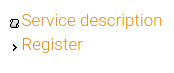 Register for Helix
- bwForCluster Helix uses a 2-factor authentication (2FA) mechanism to increase security.
- If you have never registered a 2FA token on bwIDM, the following error message will appear:
- Use this link or select My Tokens in the main menu.
- To register a new token, please follow these instructions.
- Please complete this step before continuing.
- Read the Terms of Use / Nutzungsbedingungen, place a check mark next to I have read and accepted the terms of use and click Register/Registrieren.
- Set a service password for bwForCluster Helix and click Save/Speichern.
- Be sure to use a secure password that is different from any other passwords you currently use or have used on other systems.


 |
The service password is your private password for accessing the bwForCluster Helix. Don't ever share it with anyone! |
Registration Website bwServices
The registration website bwServices offers the following functionality:
- Register for the service.
- Set or change your service password.
- Review your registration details under "Registry Info". This includes your account status (active/lost_access).
- bwServices triggers an update of your user information upon login.
- Registering an SSH key. It can be used for login to bwForCluster Helix.
- Creating tokens for logins that need 2-factor authentication (2FA) like bwForCluster Helix and bwVisu.
- De-register from the service.
Troubleshooting with the Help of bwServices
When encountering connection issues with a service, the bwServices website is a good starting point for troubleshooting:
- Issue: Expired contract or inactive student id:
- No access to state services like the bwHPC clusters or SDS@hd is possible.
- You can see that this is the issue when the login to bwServices via your identity provider is not possible.
- Issue: Recently (re)activated uni-id: Your id at your home organization was (re)activated a short time ago but this change didn't get through to the bwHPC cluster or SDS@hd service.
- Login to bwServices. This triggers an update of your user information. Some minutes later, the connection to the service should work.
- Issue: Entitlement / RV missing: Prerequisites like entitlement ownership or RV membership aren't met (anymore).
- You can see the concrete issue and advice on how to move forward when looking at the registry info of the service on the bwServices website.
- When the issue is solved, the account status changes from LOST_ACCESS to ACTIVE.
- Issue: Service Password: When trying to connect to the service, the service password is not accepted.
- At bwServices a new password can be set for the service.
- Issue: OTP: In the case of login issues with a service that uses 2FA, you can check if you're OTP is working by going in the menu to Index -> My Tokens.
- If you're token is not working, please follow the instructions for a Lost Token.
Setting a New Service Password
At any time, you can set a new service password via bwServices by carrying out the following steps:
- Visit bwServices and select your home organization.
- Authenticate yourself via your home-organizational user id / username and your home-organizational password.
- Find your service and select Set Service Password.
- Set new service password, repeat it and click the Save button.
- The page answers e.g. "password has been changed".